


Selamat pagi sobat blogger sekalian, Pada kesempatan kali ini saya akan share bagaimana cara install haproxy di centos 8 dan bagaimana cara konfigurasinya. HAProxy adalah sebuah aplikasi opensource berbasis Linux yang biasa digunakan sebagai load balancing trafic jaringan.
Pada tutorial kali ini, sobat akan belajar cara menginstal dan mengkonfigurasi HAProxy di Centos 8 Server. Pada LAB kali ini saya mengunakan 4 server diantaranya adalah sebagai berikut:
No | Hostname Server | IP Address | OS | Keterangan |
1 | Node1.webserver | 192.168.0.223 | CentOS 7 | Web Server 1 |
2 | Node2.webserver | 192.168.0.222 | CentOS 7 | Web Server 2 |
3 | Srv1.haproxy | 192.168.0.221 | CentOS 8 | Haproxy Server |
4 | Srv2.dnsserver | 192.168.0.220 | CentOS 8 | DNS Server |
Untuk masing-masing Web Server disini sudah saya masukan file websitenya dan setting Virtualhost Untuk settingannya bisa lihat postingan dibawah ini.
1. Node1.webserver

2. Node2.webserver

1. Setting Hosts
Setting Host pada masing-masing Server HAProxy, node1 dan node2[[email protected] ~]# nano /etc/hosts
127.0.0.1   localhost localhost.localdomain localhost4 localhost4.localdomain4
::1         localhost localhost.localdomain localhost6 localhost6.localdomain6
192.168.0.221   srv1.haproxy    srv1
192.168.0.222   node2.webserver node2
192.168.0.223   node1.webserver node1
2. Install HAProxy
Untuk install HAProxy jalankan perintah berikut[[email protected] ~]# dnf install -y haproxyAktifkan Service HAProxy
[[email protected] ~]# systemctl start haproxyCek status HAProxy
[[email protected] ~]# systemctl enable haproxy
[[email protected] ~]# systemctl status haproxy
● haproxy.service - HAProxy Load Balancer
   Loaded: loaded (/usr/lib/systemd/system/haproxy.service; enabled; vendor pre>
   Active: active (running) since Sun 2020-06-14 11:50:47 WIB; 2min 7s ago
 Main PID: 23539 (haproxy)
    Tasks: 2 (limit: 11490)
   Memory: 2.9M
   CGroup: /system.slice/haproxy.service
           ├─23539 /usr/sbin/haproxy -Ws -f /etc/haproxy/haproxy.cfg -p /run/ha>
           └─23541 /usr/sbin/haproxy -Ws -f /etc/haproxy/haproxy.cfg -p /run/ha>

Jun 14 11:50:47 srv1.haproxy systemd[1]: Starting HAProxy Load Balancer...
Jun 14 11:50:47 srv1.haproxy systemd[1]: Started HAProxy Load Balancer.
3. Konfigurasi HAProxy
Copy file master haproxy.cfg pada direktori /etc/haproxy[[email protected] ~]# cd /etc/haproxy/Edit file haproxy.cfg
[[email protected] haproxy]# cp haproxy.cfg haproxy.cfg.ori
[[email protected] haproxy]# nano haproxy.cfg
#---------------------------------------------------------------------
# Global settings
#---------------------------------------------------------------------
global
    log         127.0.0.1 local2

    chroot      /var/lib/haproxy
    pidfile     /var/run/haproxy.pid
    maxconn     4000
    user        haproxy
    group       haproxy
    daemon

    # turn on stats unix socket
    stats socket /var/lib/haproxy/stats

    # utilize system-wide crypto-policies
    ssl-default-bind-ciphers PROFILE=SYSTEM
    ssl-default-server-ciphers PROFILE=SYSTEM

#---------------------------------------------------------------------
# common defaults that all the 'listen' and 'backend' sections will
# use if not designated in their block
#---------------------------------------------------------------------
defaults
    mode                    http
    log                     global
    option                  httplog
    option                  dontlognull
    option http-server-close
    option forwardfor       except 127.0.0.0/8
    option                  redispatch
    retries                 3
    timeout http-request    10s
    timeout queue           1m
    timeout connect         10s
    timeout client          1m
    timeout server          1m
    timeout http-keep-alive 10s
    timeout check           10s
    maxconn                 3000

#---------------------------------------------------------------------
# HAProxy Monitoring Config
#---------------------------------------------------------------------
listen haproxy-monitoring
    bind *:8080                      # HAProxy monitoring port 8080
    mode http
    option forwardfor
    option httpclose
    stats enable
    stats show-legends
    stats refresh 5s
    stats uri /stats                 # url untuk monitoring HAProxy
    stats realm Haproxy\ Statistics
    stats auth admin:password        # User dan password untuk login
    stats admin if TRUE
    default_backend backend-server   # Monitoring backend

#---------------------------------------------------------------------
# main frontend which proxys to the backends
#---------------------------------------------------------------------
frontend main
    bind *:80
    option http-server-close
    option forwardfor
    default_backend             backend-server

#---------------------------------------------------------------------
# round robin balancing between the various backends
#---------------------------------------------------------------------
backend backend-server
    balance     roundrobin
    option httpchk HEAD / HTTP/1.1\r\nHost:\ localhost
    server  node1.webserver 192.168.0.223:80 check
    server  node2.webserver 192.168.0.222:80 check
[[email protected] haproxy]# nano /etc/rsyslog.confHilangkan tanda # pada baris 19-20 lalu tambahkan pada baris 21
# Provides UDP syslog reception
# for parameters see http://www.rsyslog.com/doc/imudp.html
module(load="imudp") # needs to be done just once
input(type="imudp" port="514")
$AllowedSender UDP, 127.0.0.1
# Log anything (except mail) of level info or higher.
# Don't log private authentication messages!
*.info;mail.none;authpriv.none;cron.none                /var/log/messages
local2.*                                                /var/log/haproxy.log
[[email protected] haproxy]# systemctl restart haproxy
[[email protected] haproxy]# systemctl restart rsyslog
[[email protected] ~]# systemctl status haproxy
● haproxy.service - HAProxy Load Balancer
   Loaded: loaded (/usr/lib/systemd/system/haproxy.service; enabled; vendor preset: disabled)
   Active: active (running) since Sun 2020-06-14 14:48:09 WIB; 9min ago
  Process: 24072 ExecStartPre=/usr/sbin/haproxy -f $CONFIG -c -q (code=exited, status=0/SUCCESS)
 Main PID: 24073 (haproxy)
    Tasks: 2 (limit: 11490)
   Memory: 2.7M
   CGroup: /system.slice/haproxy.service
           ├─24073 /usr/sbin/haproxy -Ws -f /etc/haproxy/haproxy.cfg -p /run/haproxy.pid
           └─24076 /usr/sbin/haproxy -Ws -f /etc/haproxy/haproxy.cfg -p /run/haproxy.pid

Jun 14 14:48:09 srv1.haproxy systemd[1]: Stopped HAProxy Load Balancer.
Jun 14 14:48:09 srv1.haproxy systemd[1]: Starting HAProxy Load Balancer...
Jun 14 14:48:09 srv1.haproxy systemd[1]: Started HAProxy Load Balancer.
[[email protected] ~]# firewall-cmd --add-port=80/tcp --permanent
[[email protected] ~]# firewall-cmd --add-port=443/tcp --permanent
[[email protected] ~]# firewall-cmd --add-port=8080/tcp --permanent
[[email protected] ~]# firewall-cmd --reload
Cek port[[email protected] ~]# netstat -atpn
Active Internet connections (servers and established)
Proto Recv-Q Send-Q Local Address Foreign Address State PID/Program name
tcp 0 0 0.0.0.0:80 0.0.0.0:* LISTEN 24076/haproxy
tcp 0 0 0.0.0.0:8080 0.0.0.0:* LISTEN 24076/haproxy
tcp 0 0 0.0.0.0:22 0.0.0.0:* LISTEN 862/sshd
tcp 0 0 192.168.0.221:80 192.168.0.100:65174 TIME_WAIT -
tcp 0 0 192.168.0.221:80 192.168.0.100:65176 TIME_WAIT -
tcp 0 0 192.168.0.221:80 192.168.0.100:65175 TIME_WAIT -
tcp 0 0 192.168.0.221:8080 192.168.0.100:12435 TIME_WAIT -
tcp 0 0 192.168.0.221:8080 192.168.0.100:12433 TIME_WAIT -
tcp 0 64 192.168.0.221:22 192.168.0.100:1400 ESTABLISHED 23563/sshd: kris [p
tcp 0 0 192.168.0.221:8080 192.168.0.100:12430 TIME_WAIT -
tcp 0 0 192.168.0.221:80 192.168.0.100:65171 TIME_WAIT -
tcp 0 0 192.168.0.221:8080 192.168.0.100:65183 TIME_WAIT -
tcp 0 0 192.168.0.221:8080 192.168.0.100:12429 TIME_WAIT -
tcp 0 0 192.168.0.221:8080 192.168.0.100:12434 TIME_WAIT -
tcp 0 0 192.168.0.221:80 192.168.0.100:65172 TIME_WAIT -
tcp 0 0 192.168.0.221:80 192.168.0.100:65173 TIME_WAIT -
tcp6 0 0 :::22 :::* LISTEN 862/sshd
Untuk pengetesan akses IP Address Server HAProxy pada web browser, jika berhasil HAProxy akan mengambil alih dari Server Backend node1 dan node2.

Arahkan IP DNS Client ke DNS Server
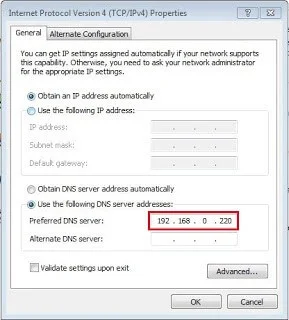
Lalu akses menggunakan nama domain

Untuk memonitoring HAProxy Akses melalui browser http://IP_Address:8080/stats lalu masukan user dan password yang sebelumnya kita buat.

Tampilan Monitoring HAProxy

HAProxy akan memberikan alert jika ada salah satu node sedang Down

5. Setting SSL
Masuk ke direktori /etc/pki/tls/certs/[[email protected] ~]# cd /etc/pki/tls/certs/Lalu buat sertifikat self-signed baru dan isi beberapa pertanyaan yang diajukan.
[[email protected] certs]# openssl req -x509 -nodes -newkey rsa:2048 -keyout /etc/pki/tls/certs/haproxy.pem -out /etc/pki/tls/certs/haproxy.pem -days 365Atur permission file sertifikat tersebut
Generating a RSA private key
.............+++++
................................................................+++++
writing new private key to '/etc/pki/tls/certs/haproxy.pem'
-----
You are about to be asked to enter information that will be incorporated
into your certificate request.
What you are about to enter is what is called a Distinguished Name or a DN.
There are quite a few fields but you can leave some blank
For some fields there will be a default value,
If you enter '.', the field will be left blank.
-----
Country Name (2 letter code) [XX]:IN
State or Province Name (full name) []:Jawa Barat
Locality Name (eg, city) [Default City]:Jakarta
Organization Name (eg, company) [Default Company Ltd]:PT.abc
Organizational Unit Name (eg, section) []:Informasi Teknologi
Common Name (eg, your name or your server's hostname) []:srv1.haproxy
Email Address []:[email protected]
[[email protected] certs]# chmod 600 haproxy.pemEdit file haproxy.cfg lalu edit file seperti dibawah ini
[[email protected] certs]# nano /etc/haproxy/haproxy.cfgRestart service HAProxy
global
...
maxsslconn 256
tune.ssl.default-dh-param 2048
...
frontend main
bind *:443 ssl crt /etc/pki/tls/certs/haproxy.pem
[[email protected] certs]# systemctl restart haproxy

Demikian kira-kira artikel Cara Install HAProxy di Centos 8 ini saya buat. Semoga bermafaat untuk kita semua. Silahkan Share Jika sobat merasa postingan ini bermanfaat. Sekian & Terimakasih Salam.


